Drain Phone Battery Troubleshooting: Quick Fixes
Diagnose and fix rapid battery drain on smartphones with a structured, urgent troubleshooting guide from Drain Guide. Learn common causes, step-by-step fixes, safety tips, and prevention strategies to extend your device uptime.


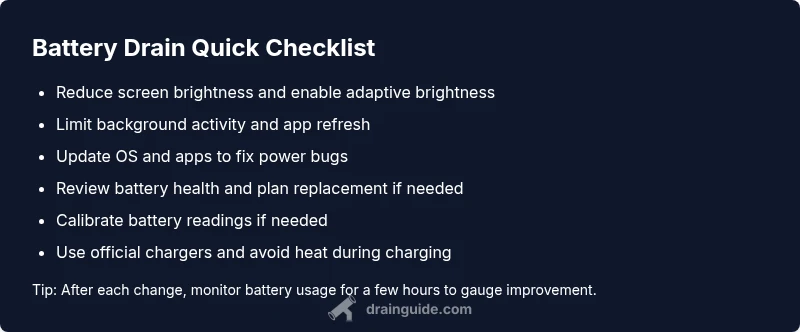
To quickly curb drain, start by reducing screen brightness and enabling adaptive brightness. Close or restrict heavy background apps, disable unnecessary location services, and turn off push email when possible. Update to the latest OS and app versions to fix known battery bugs. If drain persists, run a battery health check and consider a replacement if the battery is aged or swollen. These steps cover most common causes.
Why drain phone battery happens
Smartphones are designed for constant connectivity and peak performance, but several common habits can turn ordinary use into rapid battery drain. In many cases, the root cause is not a defective battery but how you use and configure the device day-to-day. The phrase drain phone battery is a clue that one or more settings push power draw beyond what the battery can sustain. According to Drain Guide, most fast drains begin with display settings, background activity, and software glitches, then compound when hardware like radios and sensors stay active for long periods. Understanding these patterns helps you act quickly. If your phone feels warm and the battery percentage drops faster than expected, start with the simplest fixes: dim the screen, curb background activity, and install any pending software updates. These steps usually address the bulk of drain issues without requiring professional service. In the sections that follow, you’ll see practical checks, a diagnostic flow, and a safe, step-by-step plan you can complete in under an hour.
Common culprits at a glance
- Screen brightness and display: A bright screen on a large, high-refresh display can consume power quickly, especially in outdoor light. Enable adaptive brightness to reduce unnecessary glare.
- Background activity: Apps that refresh in the background, fetch data, or play music can drain energy even when you’re not actively using them.
- Location services and push data: Constant GPS use, frequent map updates, and continuous push notifications keep radios awake and waste juice.
- Network strain: In poor signal areas, phones boost transmit power to stay connected, which burns more battery.
- Battery health: An aging or degraded battery loses capacity and efficiency, accelerating drain over the day.
- Rogue apps or system glitches: A recently installed app or a bug in the OS can create wakelocks that keep the device from sleeping.
Checking battery health and usage stats
Most modern smartphones provide built-in tools to see which apps or services are consuming power. Start with the battery section in Settings and look for total usage, screen-on time, and per-app consumption. If you see an app using an unusually large share, investigate whether its permissions, background activity, or data sync can be limited. iOS shows Battery Usage by App; Android offers Battery or Maintenance tools and battery history charts. Use these tools to identify whether the issue is a single resource hog, a system-level wakelock, or simply an aging battery. If your device has a battery health metric, compare it to the original design capacity. A significantly reduced health score typically signals that a replacement will restore typical uptime. Record your findings so you can track improvements after applying fixes.
Diagnostic flow: symptom → diagnosis → solution
Start with a clear symptom: is the drain constant throughout the day, or does it spike after using a particular app or feature? If the drain is consistent, the likely suspects are display or background activity. If it spikes after a specific activity, that app or the related service may be the culprit. Use a simple decision tree:
- If battery health is poor or cycles are high, plan a replacement.
- If screen-on time is excessive, fix display settings and app refresh rules.
- If a single app dominates power use, adjust its settings or uninstall it.
- If radios stay awake despite no usage, review location and background data permissions. This flow helps you narrow down quickly and reduces trial-and-error tuning.
Safety and best practices when troubleshooting
Always start with non-destructive steps. Avoid jerry-rigging battery health with risky calibrations unless you understand the risks. Keep your device away from heat sources during charging, and never use damaged chargers or third-party cables that can cause overheating. If you notice swelling, overheating, or a device that refuses to boot after a fix, stop and seek professional service immediately. Proper safety practices protect you and the device while you diagnose the drain.
Step-by-step fixes for the most common causes
In practice, you’ll follow a prioritized sequence to address drain phone battery quickly. Start with simple, high-impact changes—display, then background activity, then software issues. After each fix, test to see if the drain slows down over several hours or a full day. If you still see abnormal drain, move to the next fix in the order below and re-check. This approach minimizes trial-and-error and increases the chance of a quick improvement.
Safety and best practices (continued)
- Use only official chargers and cables; cheap third-party accessories can cause power irregularities and thermal issues.
- Avoid charging the device while it’s in a case that traps heat; ensure ventilation during charging sessions.
- If you must replace the battery, use authorized service providers to preserve warranty and ensure correct voltage and safety standards.
Prevention: keep battery healthy for longer
Regular maintenance helps prevent rapid drain. Keep software updated to close power-hungry bugs, review app permissions to disable unnecessary background activity, and enable built-in battery saver options when you anticipate high usage. Occasionally calibrate the battery if readings seem off, but don’t overdo it. A simple daily habit—short screen-on times, mindful app usage, and timely updates—can sustain reliable uptime and avoid unexpected outages.
When to seek professional help and what to expect
If you’ve exhausted software fixes and the drain remains severe, the issue is most likely hardware-related or battery degradation. A professional tech can run diagnostics, confirm battery health, and replace the battery safely if needed. In some cases, a full device replacement may be more cost-effective if the hardware has reached the end of its lifecycle.
Steps
Estimated time: 45-60 minutes
- 1
Reduce screen brightness
Lower the brightness to a comfortable level and enable adaptive brightness if available. This cuts the display power draw without impacting usability.
Tip: Use the brightness slider for quick adjustments during the day. - 2
Limit background activity
Review which apps run in the background and disable auto-refresh for ones you don’t use often. This reduces wake cycles that drain power.
Tip: Turn off background data for rarely used apps. - 3
Update OS and apps
Install pending system updates and app updates. Updates often fix battery bugs and improve power management.
Tip: Enable automatic updates where possible. - 4
Manage location and fetch
Limit location services to while using apps and adjust fetch/push settings for mail and social apps to longer intervals.
Tip: Grant location access only when necessary. - 5
Check battery health
If health shows reduced capacity or unusual cycles, plan for replacement through an authorized service.
Tip: Calibrate readings if you notice inconsistent percentage changes. - 6
Safe charging practices
Use official chargers, avoid charging in heat, and replace aging batteries to prevent performance loss.
Tip: Avoid overnight charging if heat accumulates.
Diagnosis: Phone battery drains quickly, especially after overnight idle or light use
Possible Causes
- highHigh screen brightness and long screen-on time
- highBackground apps and wakelocks
- highAging battery or degraded health
- mediumPoor network signal causing radio to stay active
Fixes
- easyLower brightness and enable adaptive brightness
- easyLimit background activity and review app refresh
- easyUpdate OS and apps to fix power bugs
- mediumCheck battery health and plan replacement if needed
- easyCalibrate battery if readings are inaccurate
Got Questions?
Why is my phone battery draining so fast?
Most fast drains come from a bright display, background apps, and software bugs. Check battery usage, reduce screen-on time, and update software to fix common issues.
Fast drain is usually caused by display brightness, background apps, or software bugs. Start with brightness, background activity, and updates.
How can I check battery health on Android and iPhone?
Both platforms offer battery sections in Settings that show usage, health, and capacity. Look for health indicators and per-app power usage to identify culprits.
Open Settings, go to Battery, and review usage and health indicators to spot power hogs.
Is it safe to calibrate a smartphone battery?
Calibration can help if readings are inaccurate, but it should not replace a faulty battery. Do it occasionally and avoid frequent deep cycles.
Calibration is sometimes helpful, but use it sparingly and don’t rely on it to fix bad battery health.
Does screen brightness impact battery life?
Yes. Higher brightness increases energy use significantly. Reducing brightness and enabling adaptive brightness can extend uptime.
Yes, brightness greatly affects battery life; lower brightness or enable adaptive brightness to save power.
Should I replace the battery or the phone?
If battery health is poor and the device otherwise works well, replacing the battery is usually best. If the device is aging or faulty in other ways, consider a new phone.
Usually replace the battery if health is poor and the device is otherwise fine; otherwise consider a new phone.
Why do apps consume more battery than others?
Apps with frequent data syncing, location usage, or media activity stay awake longer and use more power. Review permissions and limit background activity.
Some apps stay awake due to data syncing and location use; manage permissions and background activity to reduce drain.
Watch Video
The Essentials
- Start with display and background activity
- Check battery health and plan a replacement if degraded
- Update software to fix power bugs
- Limit location and background fetch for misbehaving apps