What is draining my phone battery? A Troubleshooting Guide
A practical, urgent guide to diagnosing and fixing battery drain on smartphones. Learn quick checks, common culprits, and step-by-step fixes to extend battery life safely.


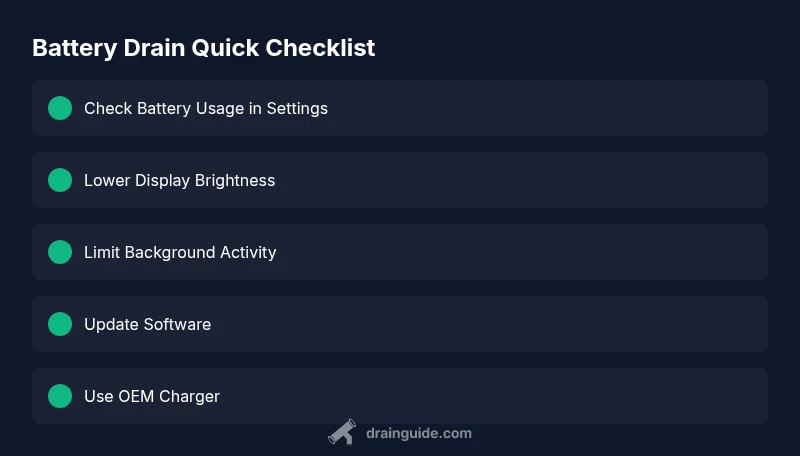
According to Drain Guide, start by checking Battery Usage in Settings to identify power hogs. Then reduce screen brightness, enable auto-brightness, and turn off background app refresh for rarely used apps. Disable unnecessary location services and push notifications. If that doesn't help, update your OS, install pending patches, and test with a different charger or battery health check.
Understanding smartphone battery drain
Battery drain is the difference between how much energy your phone uses and how long you can use it before recharging. In modern devices, drain comes from a mix of hardware activity (display, processor), software behavior (apps and services), radio communication (cellular, Wi-Fi, Bluetooth, GPS), and battery age. The phrase "what is draining my phone battery" often points to a few steady culprits rather than a mysterious single offender. According to Drain Guide, most drain is predictable once you learn to read your device’s power indicators. Start by noting your daily usage patterns, then compare them to your screen-on time and app activity. This helps you prioritize fixes and avoid guesswork. A systematic approach reduces frustration and preserves battery health for longer.
In practice, you’ll see that the display often dominates power consumption, especially with high brightness or high refresh rates. Background tasks, such as syncing data and location tracking, can quietly sap energy if left running. Network conditions—weak cellular signals, constantly switching between towers—also force radios to work harder, draining battery faster. Finally, older batteries naturally hold less charge, so even normal usage can feel exhausting as capacity declines. By understanding these factors, you can tailor a plan that tackles the biggest drains first while keeping your device safe.
Quick checks you can do in minutes
Before diving into apps or settings, run a few fast tests to gauge where drain is coming from. Open Battery Usage or Power Consumption in Settings to see which apps or services consume the most energy today. Compare today’s numbers with yesterday; large jumps often indicate misbehaving apps or recent updates. Check for a bright lock screen or always-on display; if you have high brightness, try lowering it or enabling auto-brightness. Turn off features you don’t use—like Bluetooth, GPS, or Wi‑Fi scanning when unnecessary—and see if energy use drops. If your device supports a high refresh rate, consider lowering it to the standard 60 Hz for longer life.
Additionally, examine background activity: some apps refresh content in the background even when you’re not using them. Disable background refresh for apps that don’t need to stay current. Limit location services to while-in-use for apps that don’t require constant tracking. Don’t forget to check charging habits; a bad charger or frequent fast charging can contribute to overheating and battery wear over time.
Common culprits and how to address them
- Screen brightness and display settings: The display is often the top battery drain. Set brightness to a comfortable level, use auto-brightness, and enable a darker wallpaper if you’re on OLED. If your phone has a high refresh rate, try temporarily lowering it to 60 Hz. - Background activity and push notifications: Apps that refresh in the background or push frequent notifications waste power. Review app permissions and restrict background refresh for low-value apps. - Connectivity radios: Weak cellular signals force your radios to work harder, draining more power. Use Wi‑Fi when available and enable Airplane Mode in poor signal areas if you don’t need connectivity. - Location services: GPS gets power-hungry; switch to “only while using” for most apps. - Battery age and health: All batteries age; if your device is more than 2–3 years old, even normal usage can feel draining. Consider battery replacement if health is under 80%.
Fixing this cluster of issues often yields the biggest gains in a short time. Make one change at a time and monitor the effect on battery life to isolate the actual culprit without overhauling every setting at once.
Software updates, app health, and charging habits
Software updates can fix known battery drain bugs and improve power management, so keep OS and apps up to date. Manufacturers release energy efficiency improvements and bug fixes in minor and major updates; delaying updates can leave you with unresolved drain issues. When updating, ensure you have sufficient battery or perform updates over Wi‑Fi to avoid extra drain.
App behavior changes after updates; if you notice sudden drain after installing a new version, check the app’s permissions and recent changes. Clear cache or reinstall apps that misbehave. Testing with a different charger or charging cable can reveal charger-related issues; high-quality, compliant chargers minimize heat during charging. Excessive heat is a leading cause of accelerated battery wear, so avoid charging on soft surfaces that trap heat and avoid using the device while charging if the body gets unusually warm. Finally, consider enabling battery saver modes during heavy-use days to stretch life until you can charge.
When to seek professional help and battery safety
Over time, batteries degrade and may need replacement. If you notice swelling, unusual heat, or rapid discharge even after software fixes, stop using the device and seek service. A swollen battery is a safety risk and should be replaced by a trained technician. Also, if you recently dropped the device or exposed it to water, internal damage can alter battery performance and cause fast drain. Battery health tools in settings can give a health score; if this is under 80%, plan a replacement. If the device is still under warranty, contact the maker or authorized service center. In the meantime, avoid zero-external-charger risk: use the original charger and avoid third-party cheap cables that aren’t certified. For iPhones, you can check Battery Health in Settings; for Android, use the maintenance tools provided by the OEM. If drain persists despite all steps, it may be time to replace the battery rather than chasing software fixes, particularly on older devices.
Prevention: long-term maintenance and habits
Establish routines to keep battery health intact. Avoid exposing devices to heat, limit intense gaming while charging, and remove unfamiliar accessories. Set reasonable expectations for battery life and plan charges before you hit critical low levels. Use official charging equipment, disable unneeded radios after use, and schedule periodic checks of battery health. Practicing these habits reduces drain and extends the usable life of your device, saving money and frustration over time.
Steps
Estimated time: 20-40 minutes
- 1
Check battery usage by app
Open Settings > Battery > Battery Usage to identify top energy consumers. Note which apps stay awake most and whether a recent update coincides with higher drain. This helps target your fixes rather than guesswork.
Tip: Use the last 24 hours view for accurate results. - 2
Lower display brightness and adjust refresh rate
Set brightness to an appropriate level and enable auto-brightness. If your device supports 120 Hz, temporarily switch to 60 Hz to cut energy use while testing.
Tip: Compare battery life before and after the change. - 3
Limit background activity and notifications
Disable background refresh for apps that don’t need constant updates and restrict nonessential push notifications. This reduces wake cycles and radio activity.
Tip: Test after changes to confirm improvements. - 4
Improve connectivity behavior
In weak signal areas, prefer Wi‑Fi when available and consider Airplane Mode when you don’t need cell service. This reduces radio power draw during poor coverage.
Tip: Avoid leaving radios on when unnecessary. - 5
Check charging habits and charger health
Use an OEM charger and a certified cable. Avoid charging while gaming or in hot environments to minimize heat and wear.
Tip: Inspect for frayed cables or warm chargers before use. - 6
Check battery health and plan replacement
In Settings, review Battery Health (or device health) and note if capacity is below 80%. Plan for replacement if necessary, especially on older devices.
Tip: A replacement can be more cost-effective than ongoing drain fixes. - 7
If drain persists, consider a reset
Back up data and perform a factory reset as a last resort. Reintroduce apps gradually to identify stubborn culprits without repeating the entire process.
Tip: Always back up before resetting.
Diagnosis: Phone battery drains quickly after a full charge
Possible Causes
- highHigh screen brightness and active display
- highBackground apps and services consuming power
- mediumPoor network signal causing radios to work harder
- mediumAging battery with reduced capacity
- lowSoftware bugs causing wake-lapses
Fixes
- easyLower brightness and reduce display settings
- easyClose or restrict background apps and disable background refresh
- easyEnable battery saver mode and update OS/apps
- mediumTest with a known-good charger and assess battery health; if battery health is poor, replace battery
- hardIf drain persists after updates, perform factory reset as last resort (backup first)
Got Questions?
What are the most common causes of battery drain on smartphones?
The most common causes are high screen brightness, frequent app activity in background, location services, and aging batteries. Other factors include poor network conditions and faulty apps.
The main culprits are brightness, background activity, and aging batteries.
How can I reduce battery drain quickly?
Lower brightness, enable auto-brightness, restrict background activity, and update software. These steps deliver fast, noticeable improvements.
Lower brightness and update software first.
Should I replace my battery if it’s old?
Age reduces capacity; battery replacement can be cost-effective for older devices. If health is consistently below 80%, replacement is worth considering.
If the battery is old, replacement is worth considering.
Why does a poor signal drain more battery?
Poor signal requires the phone to boost transmit power, which uses more energy and drains the battery faster.
Poor signal makes your phone work harder to stay connected.
What about background apps and notifications?
Background activity and frequent alerts wake the device, increasing energy use. Manage permissions and limit background refresh for high-drain apps.
Background apps and alerts wake the device, draining more power.
Watch Video
The Essentials
- Identify top power hogs with Battery Usage, then fix the main culprits
- Lower display brightness and curb background activity to extend life
- Keep OS and apps updated to reduce drain
- Check battery health and replace aging batteries as needed