How to Tell What's Draining My iPhone Battery: A Troubleshooting Guide
Diagnose why your iPhone battery drains quickly and learn practical, safe fixes. From screen time to app activity, follow a structured troubleshooting guide to reclaim battery life.


The most common drains are prolonged screen-on time and background activity. Check Battery Usage in Settings, lower screen brightness, and disable unnecessary background refresh. If the issue persists, follow a structured diagnostic flow to identify the culprit and apply targeted fixes.
Why iPhone battery drains quickly
According to Drain Guide, the most common drains on an iPhone come from prolonged screen-on time and background activity that keeps apps awake. The Drain Guide team found that even small, persistent settings changes can accumulate into noticeable battery loss over a day. Factors such as high brightness, frequent push notifications, location services, and aging battery health all contribute. Understanding these drivers helps you act fast rather than waiting for the battery to reach a critical level. The goal is to reduce unnecessary drain without compromising essential phone usage. By focusing on the top offenders first, you can reclaim meaningful battery life today.
Quick checks you can do now
Before diving into diagnostics, perform a few fast checks that often yield immediate improvements:
- Lower screen brightness or enable Auto-Brightness to minimize display drain.
- Enable Low Power Mode during heavy use periods to curb background activity.
- Review and disable Background App Refresh for apps you don’t need updating in the background.
- Turn off Location Services for apps that don’t require it and limit system services.
- Close apps you aren’t actively using, and restart the iPhone if you notice lingering drain after updates.
Diagnostic flow overview
A clear diagnosis starts with data. Open Settings > Battery to view usage by app and time since last full charge. Note which apps consume the most energy and whether the drain aligns with screen-on time. If a single app is responsible, update it, restrict its background activity, or uninstall if unnecessary. If usage seems balanced but drain persists, investigate systemic factors such as battery health, iOS version, or misconfigured system services. This flow keeps you grounded in observable data and avoids guessing.
Common culprits and how to test them
Battery life can be impacted by several overlapping factors. Test each culprit one at a time: reduce brightness to 50% or lower and observe changes over 24 hours; disable Background App Refresh for 24–48 hours; review push notifications and disable nonessential alerts; check for rogue widgets or live activities that refresh constantly. If you notice significant improvement after a single change, that culprit is likely the main drain. If not, continue with the next test in a controlled sequence.
Reading battery health and usage data
In Settings > Battery, look for the Battery Usage tool and Battery Health (if available). The tool shows which apps ran the most on a given day, which helps you differentiate between heavy usage apps and system processes. Battery Health reports the maximum capacity and peak performance capability. A device with degraded battery health may drain faster even under normal use. Use these insights to decide whether a repair or replacement is warranted, especially on older devices.
Practical fixes you can implement today
Implement quick wins first: enable Low Power Mode, reduce brightness, and turn off background refresh for rarely used apps. Next, ensure iOS and apps are updated to the latest versions, which often include battery optimizations. Consider turning off widgets that refresh frequently and disable visual effects that require extra processing power. If a single app consistently drains, replace it with an alternative or limit its permissions. Finally, re-check battery usage after each change to quantify impact.
Safety, privacy, and reliability reminders
Always ensure you have a recent backup before performing resets or major changes. Don’t reset network settings or erase content unless you’ve exhausted other steps or you’re troubleshooting a broader issue. Privacy matters: limit data-heavy features like frequent location tracking and background analytics unless needed. If you suspect hardware fault (battery swelling, excessive heat), stop using the device and seek professional service promptly to prevent damage.
Quick wins for ongoing prevention
Create a simple routine: check Battery Usage weekly, adjust settings after major app updates, and keep software current. Consider scheduling a mid-cycle battery health check when you notice unusual drain after iOS updates. Small, consistent optimizations add up to noticeably longer battery life over weeks and months.
Steps
Estimated time: 45-60 minutes
- 1
Open Battery Usage to identify top offenders
Navigate to Settings > Battery and review the list of apps with the highest energy consumption. Note the time frame you’re analyzing to ensure accuracy. This step establishes the baseline so you know what to fix first.
Tip: Take a screenshot of the usage view for reference when testing changes. - 2
Reduce screen brightness and enable Auto-Brightness
Lower the display brightness to a comfortable level and enable Auto-Brightness if your device supports it. Brightness directly impacts battery life, especially when combined with frequent screen-on time.
Tip: Use Control Center or Settings to adjust quickly; test changes over 24 hours. - 3
Disable Background App Refresh for non-essential apps
In Settings > General > Background App Refresh, turn off the feature for apps that don’t need to refresh content in the background. This reduces wakeups and conserves power.
Tip: Restart your phone after changing settings to ensure changes take effect. - 4
Limit Location Services and system services
Review Location Services in Settings > Privacy > Location Services and disable for apps that don’t require it. Also limit system services that may ping in the background.
Tip: Set to While Using for only a few apps that truly need it. - 5
Update iOS and apps to the latest version
Software updates often include energy efficiency improvements. Make sure both iOS and your apps are current.
Tip: Back up before major updates and ensure your device has adequate storage. - 6
Test Low Power Mode and long-term prevention
Enable Low Power Mode during heavy usage periods or when battery is low. Use this as a proactive prevention step to extend life.
Tip: Remember to disable Low Power Mode if you need full performance for tasks. - 7
Assess battery health and plan next steps
If Battery Health shows reduced capacity, plan a replacement with an authorized service provider, especially for older devices.
Tip: Age-related drain is common; a replacement can restore peak performance.
Diagnosis: iPhone battery drains quickly despite moderate usage
Possible Causes
- highHigh screen-on time and brightness
- highBackground app activity and push notifications
- highDegraded battery health (reduced capacity)
- lowRogue app or misbehaving background task
- lowSystem services consuming power after an update
Fixes
- easyOpen Settings > Battery to review app usage and identify top offenders
- easyEnable Low Power Mode during heavy usage periods
- easyReduce screen brightness or enable Auto-Brightness
- easyDisable Background App Refresh for non-essential apps
- easyLimit Location Services for apps that don’t need it
- easyUpdate iOS and apps to the latest versions
- mediumIf battery health is degraded, consider a replacement from an authorized service provider
Got Questions?
What is the most reliable way to tell which app drains my battery?
Check Settings > Battery to see usage by app over a meaningful time frame. Identify the worst offenders and test by disabling or restricting their background activity.
Check Battery usage in Settings to identify the worst drainers, then test by disabling background activity for those apps.
Can background activity really drain battery even when I’m not using the phone?
Yes. Apps can wake in the background and use energy for updates, notifications, or syncing. Reviewing and limiting background activity helps a lot.
Yes, background activity can drain energy even when you aren’t actively using the phone; limit it via settings.
Is it safe to use Low Power Mode all the time?
Low Power Mode is safe and designed to extend battery life by reducing background tasks. It lowers performance slightly, so use when you don’t need max speed.
Low Power Mode is safe and helps conserve battery; it may slow some tasks, so use it when you don’t need full performance.
Should I replace my iPhone battery if it drains quickly?
If Battery Health is significantly degraded (low maximum capacity) and drain remains high after fixes, a professional battery replacement can restore life. Check warranty status first.
If health is degraded and fixes don’t help, consider a battery replacement with an authorized service provider.
Do software updates affect battery life?
Yes. Updates can improve efficiency and fix bugs that cause drain. Keep iOS and apps current to optimize battery use.
Software updates can improve battery efficiency; keep your device updated for best results.
Watch Video
The Essentials
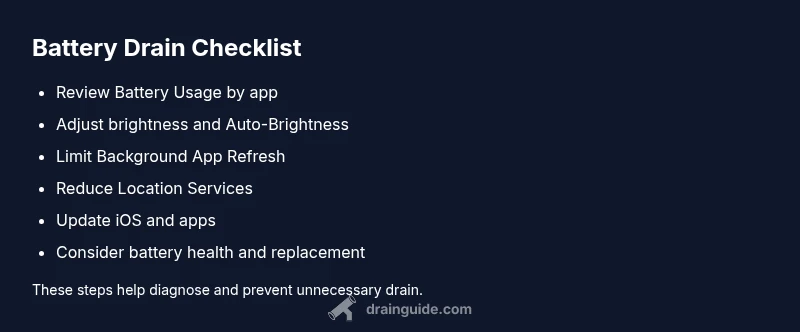
- Identify top drain offenders in Battery Usage
- Lower screen brightness and enable Auto-Brightness
- Limit Background App Refresh and Location Services
- Keep iOS/apps updated and consider battery health status
- Use Low Power Mode as a proactive tool for prevention