Why Does iPhone Battery Drain Overnight? A Practical Troubleshooting Guide
Diagnose and fix overnight iPhone battery drain with a step-by-step troubleshoot. Learn quick checks, settings tweaks, and when to seek Apple support. Drain Guide's expert tips help homeowners resolve energy drain fast.


Why does iphone battery drain overnight? In most cases, it's due to background activity such as apps refreshing, location services, and system tasks while the screen is off. Quick fixes: enable Low Power Mode, review battery usage, and disable Background App Refresh for nonessential apps. If the drain persists, update iOS and consider battery health replacement.
Why does your iPhone battery drain overnight?
If you’ve ever woken up to a noticeably lower iPhone charge, you’re not alone. According to Drain Guide, overnight battery drain is most often caused by background activity that continues while the screen is off and the device sits idle. This isn’t just about a few rogue apps; system tasks, mail fetch, push notifications, and location services can all chew away power while you sleep. Understanding the patterns helps you target fixes quickly. In practice, many users notice a noticeable drop overnight when several apps wake up in the early morning. The key is to isolate which activities are active when the device isn’t in use and adjust them. Drain Guide’s approach emphasizes non-destructive checks first and professional help only if the battery health is poor.
Common culprits behind overnight drain
- Background App Refresh: Apps that fetch data periodically can wake and run in the background, consuming power even when you aren’t using the phone.
- Location Services: Continuous location tracking, even at low precision, can drain battery during idle periods.
- Push Notifications and Mail Fetch: Frequent alerts and email fetch intervals wake the device and wake radios.
- Widgets and Siri Suggestions: Live widgets and voice suggestions sometimes refresh content, causing energy use.
- Screen-on Time and Always-On settings: Even when the screen is off, the display may wake briefly to update or refresh.
- Network Conditions: Poor cellular reception can force the phone to boost transmit power, draining more quickly.
Practical tip: regularly review which apps access your location and background activities; disable those you don’t need.
How to read iPhone battery usage data
iPhone provides a breakdown of battery usage by app and feature, which is essential to identify culprits. Go to Settings > Battery to view Battery Usage by App and Background Activity. Look for apps that show a high share of battery drain relative to their on-screen usage. Remember that some background activities are normal; focus on those apps that remain active in the background for extended periods. Drain Guide suggests comparing usage over a 24-hour window to differentiate between daytime active use and idle-time consumption at night. If you notice a game or streaming app consuming battery when idle, consider disabling background activity or replacing it with a lighter option.
Quick fixes you can implement now
Start with the simplest changes; most users see a noticeable improvement within a few hours or by the next morning. Enable Low Power Mode during heavy usage days and consider leaving it on if battery life is persistent. Review and disable Background App Refresh for apps you don’t need updating while idle, and tighten Location Services by choosing While Using the App or Never for rarely used apps. Lower screen brightness and set Auto-Lock to a short interval to reduce power draw. These steps are low-risk but can yield meaningful gains. Drain Guide emphasizes non-disruptive fixes first.
Deep dive: background apps and refresh settings
Background App Refresh lets apps fetch data in the background. Disable it for nonessential apps or set per-app refresh to On Wi‑Fi only. Location Services should be restricted to essential apps or set to While Using the App. Push and fetch settings can impact drain; adjust Fetch New Data to a longer interval and use Push only for critical alerts. Widgets, Siri Suggestions, and system services sometimes wake the device; if you notice excessive wake-ups, remove or disable seldom-used widgets. After changes, monitor battery usage for 24 hours to verify impact.
iOS updates, battery health, and performance
Keeping iOS up to date improves energy efficiency and bug fixes that affect battery life. Check Settings > General > Software Update for available patches. The Battery Health feature provides a maximum capacity indicator and peak performance capability; if the health is low, consider a battery replacement. Performance throttling during aging batteries might protect the device but reduces battery life; in that case a replacement can restore normal behavior. Drain Guide notes that software updates often address drain patterns discovered by users, so staying current is a best practice.
Step-by-step fixes: a practical workflow
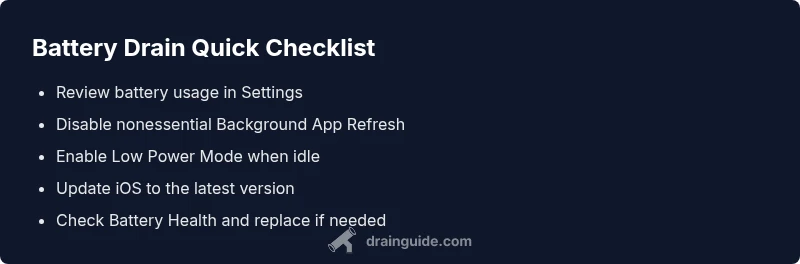
- Identify top power consumers: Open Settings > Battery and review the list of apps with the highest usage in the background. 2) Tweak per-app settings: Disable Background App Refresh for the heaviest offenders and restrict location access. 3) Activate energy-saving modes: Turn on Low Power Mode and reduce screen brightness. 4) Update and verify health: Install the latest iOS, then check Battery Health to decide if replacement is needed. 5) Reset if necessary: Reset Network Settings or all settings if the device still drains excessively, but ensure you back up data first. 6) Consider professional help: If the battery health is poor or symptoms persist, contact Apple Support. Tip: Always back up before performing resets.
Safety, warnings, and when to seek help
Battery-related tasks carry safety considerations. Do not attempt to physically swap or puncture lithium-ion batteries yourself. If you notice swelling, overheating, or unusual smells, stop using the device and seek professional service immediately. For persistent drain despite all steps, the safest course is to contact Apple Support or visit an authorized service provider. Drain Guide recommends proceeding with a cautious, data-backed approach and avoiding risky DIY battery tampering.
Prevention: keep overnight drain in check
The best defense against overnight drain is a proactive routine. Regularly review battery usage, update software, and keep essential background tasks controlled. Establish a short Auto-Lock time, maintain moderate screen brightness, and enable Low Power Mode during longer idle periods. Periodic battery health checks can flag aging cells early, keeping your iPhone reliable and extending its usable life.
Steps
Estimated time: Estimated total time: 25-40 minutes
- 1
Identify top power consumers
Open Settings > Battery and note which apps consume background power. Look for apps with high background activity and determine if they’re essential. If not, prepare to limit or remove them.
Tip: Use the 24-hour view to catch overnight activity. - 2
Limit background activity
Disable Background App Refresh for nonessential apps and restrict location access to While Using the App when possible. This reduces wake-ups that drain power while idle.
Tip: You can re-enable later if needed. - 3
Enable energy-saving modes
Turn on Low Power Mode during extended idle periods and lower screen brightness to reduce strain on the battery.
Tip: Low Power Mode is a quick win for many users. - 4
Update and verify health
Install the latest iOS update and check Battery Health under Settings > Battery > Battery Health to decide if replacement is needed.
Tip: A healthy battery can dramatically improve life. - 5
Reset settings if needed
If drain persists, reset Network Settings or All Settings after backing up data. Avoid factory reset unless necessary.
Tip: Back up before resets to preserve data. - 6
Seek professional help
If battery health is poor or symptoms persist, contact Apple Support or visit an authorized service provider.
Tip: Professional help ensures safe handling of battery issues.
Diagnosis: Battery drops noticeably overnight while iPhone appears idle
Possible Causes
- highBackground app activity and refresh
- highLocation Services running in background
- mediumPoor battery health due to aging
- mediumFrequent push notifications and mail fetch
- lowSuboptimal iOS settings or misconfigured fetch data
Fixes
- easyReview Battery Usage in Settings and disable heavy background apps
- easyTurn off Background App Refresh for nonessential apps
- easyEnable Low Power Mode and tighten Location Services
- mediumUpdate iOS and reset settings if needed
- mediumCheck Battery Health and plan replacement if health is poor
Got Questions?
What are the most common causes of overnight iPhone battery drain?
The most common causes are background app activity, location services running in the background, push notifications, and mail fetch. Other factors include widgets, always-on settings, and poor cellular conditions. Identifying and addressing these culprits is the first step in reducing overnight drain.
Common overnight drain causes are background activity and location services. Tackle these first, then check for updates and battery health.
Should I keep Low Power Mode on all the time?
Low Power Mode can extend battery life, especially when usage is heavy or battery is aging. However, it can affect app performance. Use it when you need to stretch endurance, and turn it off when you want maximum performance.
Low Power Mode helps stretch battery, but you may lose some performance. Use it as needed.
How can I see which apps drain the battery the most?
Go to Settings > Battery and review the Battery Usage by App and Background Activity. Focus on apps with high background activity and adjust their permissions or disable background refresh if possible.
Check Settings > Battery to see which apps drain power the most and adjust them.
When should I replace my iPhone battery?
If Battery Health indicates reduced maximum capacity and you notice rapid drain, replacement is often warranted. Consider Apple Support or an authorized service provider for a safe, precise replacement.
If battery health is poor and drain is rapid, replacement is typically recommended.
What if battery drain stays after trying all steps?
If overnight drain continues despite fixes, there may be a software anomaly or a hardware issue. Back up, then contact Apple Support for a professional assessment.
If it still drains, seek Apple Support for a deeper check.
Watch Video
The Essentials
- Identify top power consumers in Battery usage.
- Limit background activity and update iOS regularly.
- Monitor battery health and plan replacements when needed.
- Use Low Power Mode during idle periods and stay safety-conscious.