Why Is Battery Draining Fast on iPhone 16? A Troubleshooting Guide
Discover why your iPhone 16 battery drains quickly and follow Drain Guide's practical, step-by-step troubleshooting to diagnose causes, apply fixes, and prevent future drain.


Most iPhone 16 battery drain comes from background activity, screen brightness, and power-hungry apps. Quick fixes: enable Low Power Mode, reduce brightness, and limit background refresh. Check Battery usage to identify culprits, then disable unnecessary background activity or push notifications. If still draining, update iOS and consider resetting network settings as a last resort.
Why Battery Drain Happens on iPhone 16
The iPhone 16 blends a high-refresh display, a powerful processor, and feature-rich software. ProMotion up to 120Hz and an Always-On Display can draw more power when the screen is awake for long periods. Background tasks — mail fetch, app updates, iCloud syncing, location services, and push notifications — run even when you aren’t actively using the device. If the phone is constantly refreshing data, you’ll see battery decline. According to Drain Guide, most drain cases come from software behaviors rather than a dying battery, especially on newer devices where battery health is still relatively strong. Understanding how each setting affects power helps you target the real culprits rather than replacing the battery prematurely. The aim is to identify what’s happening in real time and tailor a minimal, effective fix.
Common Culprits to Check First
- Screen brightness and Auto-Lock timing: High brightness and long idle times greatly affect life.
- Background app refresh and location services: Apps continue to fetch data in the background.
- Push notifications and email fetch: Frequent alerts wake the screen.
- Battery health and charging habits: A battery that is aging or charged with rapid charge cycles can degrade faster.
- System features and updates: New features or bugs can temporarily increase drain.
Start by reducing brightness, enabling Low Power Mode, and shortening Auto-Lock. Review Battery usage in Settings > Battery to see which apps consume the most power and adjust permissions (Background App Refresh, Location). If you see heavy drain from a single app, consider reinstalling or limiting its background activity. Drain Guide recommends keeping iOS up to date to benefit from optimizations.
Reading Battery Usage: What the Numbers Tell You
Go to Settings > Battery and review the Last 24 Hours and Last 10 Days. Look for apps with high energy impact and compare between screen-on time and actual usage. If an app shows disproportionate drain, adjust its permissions or remove it from background activity. Use the graph to spot trends: a spike after a specific update or feature often points to a root cause.
Interpretation matters: a healthy battery can still show short-term spikes if features like Background App Refresh are enabled. If you routinely see battery drain with no obvious culprit, it may be time to explore deeper settings or contact support.
Quick Fixes You Can Tackle Right Now
- Enable Low Power Mode and reduce screen brightness.
- Limit Background App Refresh and disable unnecessary push notifications.
- Update iOS and all apps to the latest versions.
- Turn off Always-On Display if you don’t need it, or reduce lock screen frequency.
- Check for heavy battery usage by a single app; consider reinstalling or replacing the app if needed.
If you still notice rapid drain after these steps, perform a network settings reset and re-evaluate battery health. Always remember: persistent drain beyond these steps may indicate a hardware issue or a faulty battery health reading.
When Hardware or Battery Health Is the Issue
If Battery Health (Settings > Battery > Battery Health) shows reduced capacity, or if the phone shuts down unexpectedly even with a reasonable percentage, hardware could be contributing. A battery in good health should power the device through a normal day under typical use. For devices under warranty, or if health is below approximately 80%, a professional battery replacement might be warranted. Drain Guide emphasizes validating health readings with a controlled test, since software glitches can mimic hardware problems.
Preventive Habits to Extend Battery Life on iPhone 16
- Keep iOS and apps updated to benefit from battery optimizations.
- Avoid extreme heat and cold; store and charge within recommended temperatures.
- Use Wi‑Fi when available; cellular data can drain faster in poor coverage.
- Schedule regular battery health checks and enable Optimized Battery Charging.
- Minimize background activity for less-used apps and disable location services when not needed.
Adopting these habits reduces drain over time and helps protect long-term battery health.
Steps
Estimated time: 25-45 minutes
- 1
Check current battery usage
Open Settings, tap Battery, and review Last 24 Hours and Last 10 Days usage. Note which apps spike in energy usage and whether the screen was on for those periods. This helps you target the real culprits rather than guessing.
Tip: Focus on apps consistently at the top of the chart rather than sudden one-off spikes. - 2
Apply quick fixes to identified culprits
Enable Low Power Mode, reduce brightness, and limit Background App Refresh for top offenders. Turn off nonessential push notifications and background tasks. Retest battery over the next 24 hours.
Tip: Make one change at a time to understand its impact. - 3
Update iOS and apps
Install the latest iOS update and update all apps. Updates often include power efficiency improvements and bug fixes that reduce drain.
Tip: Back up your data before major updates. - 4
Reset settings if needed
If drain persists, reset network settings and all system preferences (Settings > General > Reset). This can clear misconfigured settings without erasing data.
Tip: Note which settings you reset so you can reconfigure them later. - 5
Assess battery health
Check Settings > Battery > Battery Health. If maximum capacity is low or there are frequent unexpected shutdowns, plan a battery replacement with a pro.
Tip: Battery health readings can sometimes be inaccurate; seek a professional test if in doubt. - 6
Re-test and monitor
After completing steps, monitor battery performance for 48 hours under typical use. If drain remains high, consult a technician or service center.
Tip: Keep a log of changes and results to guide future troubleshooting.
Diagnosis: Battery drains quickly under normal use on iPhone 16
Possible Causes
- highHeavy background activity and frequent data syncing by multiple apps
- highHigh screen brightness and Always-On/ProMotion features staying active
- mediumPoor cellular connectivity causing the phone to search for signal
- mediumOutdated iOS or buggy software increasing power draw
- lowAging battery or degraded battery health
Fixes
- easyEnable Low Power Mode, lower brightness, and limit background refresh
- easyIdentify power-hungry apps via Battery usage and disable background activity or notifications
- easyUpdate iOS and app versions to the latest releases
- mediumReset all settings if soft fixes fail, preserving data but refreshing system preferences
- hardIf Battery Health is poor, arrange a professional battery replacement
Got Questions?
Why did my iPhone 16 battery suddenly drain after updating iOS?
Software updates can temporarily increase power usage due to new features and background tasks. After a few days with normal usage, the drain typically stabilizes. If it continues, check for app updates or reset settings.
Software updates can temporarily increase drain due to new features. If it continues after a few days, check app updates and settings.
How can I see which apps are draining my battery on iPhone 16?
Go to Settings > Battery and review the Last 24 Hours and Last 10 Days charts. Tap on individual apps to see detailed usage and background activity permissions. Adjust or uninstall as needed.
Open Settings, go to Battery, and review usage by app to see which ones consume the most energy.
Is it safe to reset all settings to fix battery drain?
Yes, resetting all settings preserves your data but resets system preferences, networks, and wallpaper. It can fix misconfigurations causing drain. You’ll need to reconfigure apps and settings afterward.
Resetting settings can fix misconfigurations without erasing data, but you’ll need to reconfigure your preferences afterward.
Will replacing the battery fix drain if Health shows high capacity?
If Battery Health shows significant decline or devices shuts down unexpectedly, replacement can restore reliable performance. If health is still good, drain is likely software-related and not a hardware issue.
Battery replacement helps if health is poor or device shuts down oddly; otherwise software fixes are usually sufficient.
Does Always-On Display increase battery drain on iPhone 16?
Always-On Display can add power draw, especially in bright environments. If you don’t need it, turning it off or limiting its use can improve endurance.
Yes, Always-On Display uses more power; disable it if you don’t need it to extend battery life.
Watch Video
The Essentials
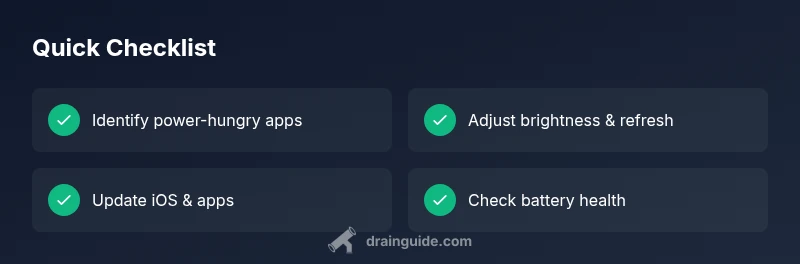
- Identify the top battery culprits with Battery usage.
- Apply quick fixes before deeper changes.
- Keep iOS and apps updated for efficiency.
- Check battery health if drain persists and consider replacement.