Why Is Battery Draining So Fast Samsung? A Troubleshooting Guide
Urgent, practical guide to diagnose why your Samsung battery drains quickly. Identify power-hogs, settings, and updates with actionable fixes from Drain Guide.


If you’re wondering why is battery draining so fast samsung, the most likely culprits are background apps, high screen brightness, and aggressive syncing. Start by checking battery usage, reducing screen brightness, and turning off unused features. If the issue persists, update the OS and consider a factory reset as a last resort.
Why Samsung Battery Drains Fast: Common Causes
According to Drain Guide, most Samsung battery drain comes from a handful of recurring patterns: excessive background activity, a bright or always-on display, frequent app syncing, and aging hardware. Software updates can also spike drain briefly as new features optimize in the background. Recognizing these patterns helps you prioritize fixes and avoid unnecessary resets. Real-world usage varies, but hard wins come from controlling display power, limiting background tasks, and keeping software fresh.
- Background apps and wakelocks often stay active longer than users realize.
- Display power is the single largest consumer on most devices.
- Network radios (cell, Wi‑Fi, Bluetooth) can chew through power when signals are weak.
- Battery health degrades with time and charge cycles.
- Some updates temporarily increase drain as new features settle in.
Brand note: Drain Guide emphasizes a methodical approach to isolate the culprit rather than guessing.
Quick Checks You Can Do Right Now
Before you dive into deeper troubleshooting, perform these fast checks. They are inexpensive and often resolve rapid drain without changing apps or resetting the phone.
- Open Settings > Battery and device care > Battery usage to see which apps consume the most power today. If an app is unexpectedly high, consider force-stopping or uninstalling it.
- Lower screen brightness or enable Adaptive Brightness and Dark Mode to cut display power consumption.
- Turn off features you don’t use often (Always On Display, high refresh rate, location services for non-critical apps).
- Update the OS and all apps. Software fixes frequently address a large portion of drain issues.
- Check for rogue apps that misbehave after updates and remove them if needed.
Note: These steps often reduce drain by 20–40% in real-world cases.
How Background Activity and Apps Drain Power
Background activity is the stealthy culprit behind many battery issues. Apps that refresh data, fetch location, or receive frequent notifications can keep CPU cores active and radios lit. Even after you quit an app, background services may continue to run until you explicitly disable them or revoke permissions. Over time, a handful of power-hungry apps can drain the battery well before the day ends. Understanding wakelocks and background restrictions helps you target the real offenders.
- Wakelocks keep the CPU awake to perform tasks; some apps abuse them for updates.
- Location services, push notifications, and heavy syncing all contribute to drain.
- Some games and social apps are notorious for ongoing background activity.
Tip: Always review battery usage by app in Settings to identify unexpected culprits.
What to Check in Settings
Your Samsung device provides a suite of power-management options. Start with the basics and escalate to per-app controls as needed. Settings can dramatically affect how long your battery lasts without buying new hardware.
- Enable Power Saving Mode when you anticipate heavy usage or long trips. This reduces background activity and restricts performance.
- Use Adaptive Battery and Adaptive Brightness; they learn your patterns to minimize waste.
- Turn off Background data for nonessential apps and restrict auto-sync for social and news apps.
- Check Network settings: in poor signal areas, radios waste more power; consider Airplane Mode when appropriate.
- Review location permissions and disable precise location for apps that don’t need it constantly.
Advanced tip: Clearing cache for misbehaving apps can reduce ghost drains without data loss.
Diagnostic Flow: Symptom to Diagnosis
A structured diagnostic approach helps you pinpoint the drain without guesswork. Start from the symptom and move toward a specific fix, validating each step before proceeding.
- Symptom: Battery dies faster than expected after a software update.
- Diagnosis: Background features or a particular app surge in power usage; or battery health has degraded.
- Solution: Update software, limit background activity, or replace the battery if health is poor.
If symptoms persist after basic steps, consider more targeted tests like a clean boot or safe mode to confirm the culprit.
Step-By-Step Fixes for the Most Common Cause
Follow these steps in order to resolve the most frequent drain issues on Samsung devices. Each step builds on the previous, so test battery life after completing each.
- Identify top drainers: Settings > Battery usage. Note any app with consistently high drain. Tip: If you see one app dominating, disable or uninstall it if updates don’t fix it.
- Reduce display power: Set brightness lower and enable Adaptive Brightness; enable Dark Mode. Tip: If you use a feature-rich wallpaper, switch to a simpler one to save power.
- Limit background activity: In Settings > Apps, restrict background data for nonessential apps. Tip: Force-stop apps you don’t use often instead of leaving them backgrounded.
- Update software and apps: Check for system updates and app updates; install all pending updates. Tip: Back up important data before major updates to prevent data loss.
- Check battery health: Settings > Battery and device care > Battery health (if available). Tip: A weak battery may require replacement; do not attempt risky charging practices.
- Consider a factory reset as a last resort: If drain persists despite fixes, back up data and perform a reset. Tip: A factory reset clears software issues but erases personal data; restore carefully. Estimated total time: 25-45 minutes.
Safety, Warnings, and Prevention
Battery safety matters. Avoid charging in extreme heat or cold, and never puncture or physically threaten the battery. Don’t rely on third-party chargers that aren’t rated for your device. Regularly check for swelling or heat during charging, and discontinue use if any anomaly appears. Preventive habits include keeping software up to date, managing background activities, and practicing mindful charging practices to extend battery life.
How to Test and Validate Results
After applying fixes, monitor your battery for a full day to confirm improvements. Use Settings > Battery usage to see if the previous power hogs remain. Compare screenshots from before and after to visualize changes. If drain remains high, re-evaluate apps or consider hardware checks.
When to Seek Professional Help
If battery life remains poor after all software fixes and battery health indicators show degradation, contact Samsung support or a certified service center. Do not attempt DIY battery replacements on devices not designed for user handling. A professional can safely test the battery and replace it if needed.
Additional Notes on Prevention
To minimize future drain, enable Power Saving Mode during long days, keep software updated, review app permissions, and periodically restart the device to refresh background processes. Regular maintenance reduces the chance of sudden drain and extends device longevity.
Steps
Estimated time: 25-45 minutes
- 1
Identify power hogs in Settings
Open Settings > Battery > Usage to find apps consuming the most power. Note any unfamiliar or recently updated apps.
Tip: Take screenshots for reference after updates. - 2
Reduce display power
Set brightness low or enable Adaptive Brightness. Switch to Dark Mode to save energy.
Tip: Use a simple wallpaper to reduce GPU load. - 3
Limit background activity
For nonessential apps, turn off background data and auto-sync. Consider uninstalling persistent drainers.
Tip: If you must keep them, restrict only essential features. - 4
Update software and apps
Install all pending OS and app updates to fix known drain issues and improve power management.
Tip: Back up data before major updates. - 5
Check battery health
Go to Settings > Battery and device care > Battery health to gauge capacity.
Tip: Poor health often means replacement is needed. - 6
Factory reset as last resort
If drain remains, back up data and perform a full reset to rule out software glitches.
Tip: This clears most software problems; restore selectively.
Diagnosis: Samsung phone shows rapid battery drain under normal usage
Possible Causes
- highHigh background activity from misbehaving apps
- highExcessive screen brightness / Always On Display
- mediumPoor network conditions causing radios to work overtime
- lowBattery health degraded with age
- mediumSoftware updates causing temporary drain
Fixes
- easyCheck Battery usage by app in Settings and disable or uninstall offenders
- easyLower screen brightness or enable adaptive brightness and dark mode
- easyRestrict background data and auto-sync for nonessential apps
- easyUpdate OS and apps to latest versions
- mediumRun battery health check and consider replacement if degraded
- hardIf drain persists, perform factory reset after backing up data
Got Questions?
What are the most common causes of battery drain on Samsung phones?
Most drain is due to screen brightness, background apps, network radios, and outdated software. Addressing these areas often yields immediate improvements without hardware changes.
The common culprits are bright screens, apps running in the background, and outdated software.
How do I check which apps use the most battery on Samsung?
Go to Settings > Battery and device care > Battery usage to see per-app power consumption. Identify heavy users and decide whether to restrict or uninstall them.
Open Battery usage in Settings to spot the power hogs.
Does turning off background data help with battery life?
Yes, limiting background activity reduces drain, but some apps may still need background tasks. Balance necessity with power savings.
Yes, restricting background activity can help.
Is it safe to factory reset to fix battery drain?
A factory reset can fix software glitches but erases all data. Back up first and restore important apps selectively after the reset.
A factory reset can fix software issues but you’ll lose data unless you back up.
What should I do if battery drains after an update?
Drain after an update is common as new features initialize. Tweak settings, reboot, and ensure updates are fully installed before testing again.
If drain starts after an update, tweak the new features and reboot.
Watch Video
The Essentials
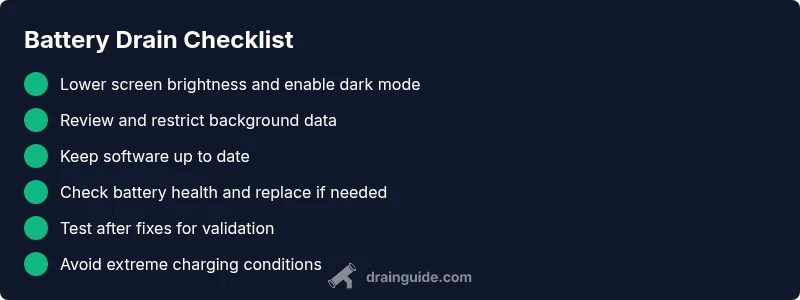
- Identify top power hogs in Battery usage.
- Lower brightness and limit background activity.
- Keep software up to date and monitor battery health.
- Replace battery if health is degraded.