Why Is My Phone Battery Draining Fast? A Practical Troubleshooting Guide
Struggling with fast battery drain on your phone? Drain Guide walks you through the most common causes, quick fixes, and long-term solutions to restore reliable battery life.


Phone battery drain is usually caused by background activity, high screen brightness, and persistent connectivity. Start with enabling battery saver, dimming the display, and closing unused apps. If drain persists, review power-hungry apps, disable unnecessary services, and check battery health. Consider professional service if the battery has aged or swollen.
Why is my phone drain so fast
If you're asking why is my phone drain so fast, the short answer is that several everyday factors push a phone's battery hard. The most common culprits are bright displays, persistent background activity, and devices continuously searching for signals. Even features you consider helpful, like location services or push notifications, can quietly sap power. Start by addressing these basics before diving into deeper diagnostics.
High screen brightness alone can halve a battery life in a few hours; lowering brightness and enabling adaptive brightness can save substantial power. Background apps keep running even when you switch tasks; force close or restrict background activity for the worst offenders. Location services and constant syncing (email, cloud backups) keep radios active, consuming energy. Network conditions matter too: poor signal forces the phone to boost transmit power, draining battery faster. Finally, aging batteries lose capacity and report lower runtime, which can mimic other issues. In many cases, solving a drain problem is about a systematic reduction of unnecessary power usage and verifying the battery's health. Drain Guide suggests starting with the simplest adjustments and moving toward targeted checks if the drain continues.
Quick checks you can do right now
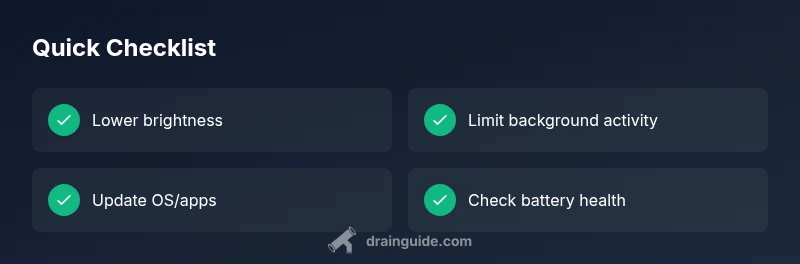
- Lower screen brightness or enable automatic brightness, and reduce screen wake time.
- Enable battery saver mode during heavy usage.
- Turn off unused connectivity (GPS, Bluetooth, Wi-Fi scanning) when not needed.
- Check which apps are using the most power in Settings > Battery.
- Update OS and apps to reduce software-driven drain.
- Review notifications and background data for essential apps only.
These quick checks can dramatically reduce idle drain and buy you time while you troubleshoot deeper issues.
How apps and services contribute to drain
Many apps perform background tasks like syncing data, tracking location, or pushing frequent updates. Social media, navigation, and email apps are common culprits because they wake the device repeatedly. Even background refresh settings can keep radios active and drain power unexpectedly. On some devices, aggressive wake locks or poorly optimized apps cause longer screen-on times or constant network activity. By identifying and restricting or removing battery-hogging apps, you can often restore meaningful runtime. Remember: software updates can fix bugs that cause excessive drain, so keeping apps and the OS up to date is a best practice.
Tip: Use built-in power usage dashboards to see which apps are the top energy users and consider alternatives if necessary.
The role of display, network, and sensors
Display settings have a outsized impact on drain. High brightness, high refresh rates, and long screen-on times burn through battery quickly. Radios and sensors continue to poll in the background: GPS, Wi-Fi, cellular data, and Bluetooth all contribute to drain, especially in poor signal areas where the phone struggles to maintain a connection. Location services and notification syncing also keep sensors active. For best results, enable adaptive brightness, limit screen-on time, and disable unnecessary sensor activity when not needed. In many cases, a simple adjustment to how you use your display and connections yields substantial gains in battery life.
Battery health and charging habits
Battery health is a key factor in runtime. Batteries age and lose capacity after hundreds of charge cycles, causing faster drain and shorter peak performance. Avoid deep discharges and extreme heat, which degrade cells over time. Use the charger that came with the device or a certified replacement, and avoid third-party fast chargers with inconsistent current. Calibrating the battery (fully charging then letting it discharge) can help the system estimate capacity more accurately, but it doesn’t restore lost capacity. If your battery health is poor, a replacement may be the most effective fix.
OS updates and software bugs
Operating system updates can both improve battery efficiency and introduce new drain issues depending on device, carrier, and app compatibility. If you notice sudden drain after an update, check for known bugs and hotfixes from the manufacturer. Clearing cache or performing a factory reset are last-resort options to address software-related drain, but back up data first. Regular software maintenance—keeping apps and OS current—reduces the risk of bugs that saps power over time.
When to replace the battery and seek professional help
If the device is several years old or health reports show significant capacity loss, a battery replacement can restore near-original runtime. Signs you should seek professional help include swollen battery, rapid heating, or battery draining even with minimal use. A certified technician can safely replace the battery and check for underlying hardware issues. In some cases, persistent drain despite a fresh battery may indicate other hardware faults that require diagnostics beyond consumer troubleshooting.
Preventing future drain: best practices
- Enable battery saver modes during heavy use and set a reasonable screen brightness.
- Limit background activity for non-essential apps and disable unnecessary notifications.
- Keep OS and apps updated and monitor energy usage regularly.
- Avoid heat and use only certified chargers; replace aging batteries promptly.
- Disable always-on features when not required and review location services permissions periodically.
Adopting these habits can dramatically extend daily runtime and reduce anxiety about battery life.
Diagnostic flow wrap-up
By walking through these sections, you’ll build a clear picture of what’s draining your battery and how to fix it. Start with the easiest steps—brightness, background activity, and connectivity—then progress to app-level investigations and battery health checks. If you reach the point where a replacement is warranted, seek professional service to ensure safety and optimal performance. Drain Guide’s approach is to empower homeowners with practical, low-cost fixes and a clear path to long-term reliability.
Steps
Estimated time: 25-40 minutes
- 1
Open power settings
Navigate to Settings > Battery and review current usage by app. Identify top drainers and note any anomalies in power usage across recent days. This establishes a baseline to compare against after fixes.
Tip: Take a screenshot of the usage screen for reference. - 2
Lower screen brightness
Reduce brightness to a comfortable level once, then enable auto-brightness if available. Limit screen-on time by shortening timeouts and using dark mode where possible.
Tip: Even small brightness reductions can noticeably extend runtime. - 3
Enable battery saver / low power mode
Turn on battery saver during heavy tasks or when you anticipate a long day without a charger. This reduces background activity and limits performance to conserve energy.
Tip: Remember to toggle off battery saver when a task requires maximum performance. - 4
Check background apps
Review apps that run in the background and restrict or uninstall those with high energy usage. Consider pausing background data for non-essential apps.
Tip: Force stop apps that spike in the power chart and monitor changes over 24–72 hours. - 5
Review connectivity settings
Disable unnecessary services like GPS, Bluetooth, and Wi‑Fi scanning when not needed. Use airplane mode in areas with no signal to prevent constant searching.
Tip: If you rely on location-based apps, grant permission only when in use. - 6
Update OS and apps
Install the latest OS and app updates, which often include battery efficiency improvements and bug fixes. Restart the device after updates.
Tip: Set updates to install automatically when plugged in and idle. - 7
Check battery health
Run a battery health check if your device supports it. If capacity is significantly degraded, plan for a replacement.
Tip: A swollen battery requires immediate professional attention. - 8
Consider professional help
If the drain persists despite fixes and a fresh battery, seek a trained technician to diagnose potential hardware faults.
Tip: Document symptoms and steps you’ve already tried to speed up the visit.
Diagnosis: Phone battery drains quickly during typical daily use
Possible Causes
- highHigh screen brightness and long screen-on time
- highBackground apps and services consuming power
- mediumPoor signal forcing radio power amplification
- mediumAging battery with reduced capacity
- lowSoftware bugs or outdated OS
Fixes
- easyReduce screen brightness and enable adaptive brightness
- easyClose or restrict background apps, and disable unnecessary services
- easyEnable battery saver mode during heavy use and review connectivity settings
- mediumUpdate OS and apps; run battery health check and consider replacement if needed
- hardIf drain persists after all checks, consult a professional technician for hardware assessment
Got Questions?
Why is my phone battery draining fast even when I’m not using it?
Most battery drain stems from background apps, poor power settings, and aging hardware. Check which apps run in the background, reduce wakeups with system settings, and test battery health. If issues persist after optimizations, consider a professional assessment.
Most battery drain comes from background apps, power settings, and aging hardware. Check background usage and health, then optimize before seeking help.
Can background apps really kill battery quickly?
Yes. Background processes can wake the device, fetch data, and push notifications repeatedly, which consumes power. For better longevity, limit background activity and review apps with high energy usage in your settings.
Background apps can wake your phone and use data, draining power. Limit background activity to save battery.
Does turning off 5G or location services help save battery?
Turning off optional features like 5G, high-accuracy location, or constant syncing can extend runtime. Reenable them when needed to balance performance and power use.
Turning off 5G and continuous location checks can help, re-enable when you need them.
Should I replace my battery to fix rapid drain?
If health reports show significant capacity loss or the device is older, a battery replacement can restore usable life. Seek professional service to ensure safe handling.
If the battery is worn or the device is old, replacing the battery can restore life. Get it serviced by a pro.
Are battery calibration apps safe to use?
Most third‑party calibration apps offer little benefit and may pose privacy risks. Rely on built‑in diagnostics and manufacturer recommendations instead.
Third-party calibration apps aren’t usually needed and can pose risks; use built-in diagnostics.
Watch Video
The Essentials
- Start with simple fixes: brightness, saver mode, and background activity.
- Identify power-hungry apps using built-in battery usage tools.
- Check battery health; aging cells often cause rapid drain.
- Update software and consider professional help if needed.