What Drains Android Battery? Quick Fixes You Can Try Now
Urgent guide to diagnosing and fixing Android battery drain. Learn quick checks, diagnostic flow, and step-by-step fixes to extend battery life with Drain Guide.


Android devices commonly drain battery quickly due to rogue apps or background activity. Start by checking Battery usage in Settings to spot energy hogs, then force-stop or uninstall suspect apps, reduce screen brightness, and disable unnecessary background activity. If the drain persists, try a Safe Mode reboot to isolate software versus hardware causes.
Why Android Battery Drains Quickly
If you're wondering what drain battery android, you're not alone. According to Drain Guide, most rapid drain comes from software behaviors rather than mysterious hardware faults. The typical culprits are apps running in the background, a screen that’s too bright, and radios that stay active when service is poor. Modern Android versions include battery optimization, but many apps ignore it, leading to frequent wake-ups and longer charging cycles.
- Background processes: Social apps, messaging, and fitness trackers that ping servers constantly.
- Display power: High brightness, long screen-on time, and always-on features.
- Radios and connectivity: Frequent data syncing, location services, and background network scans.
In practice, you’ll notice the drain when you see the battery graph dip quickly after heavy use, or when you leave the phone idle and still lose power. The good news is most issues are reversible with a few targeted changes. Drain management isn’t about disabling features; it’s about balancing essential functions with efficient operation. By prioritizing core tasks and limiting unnecessary wake-ups, you can restore meaningful battery life without sacrificing usability.
Quick Checks You Can Do Right Now
- Open Settings > Battery to identify apps that consume power the most.
- Enable Battery Saver or Low Power mode when you’re low, especially during heavy use.
- Reduce screen brightness and shorten screen timeout; consider offline maps and lower refresh rates where available.
- Review radios: turn off Bluetooth, NFC, and mobile data when not needed; disable location services for apps that don’t need it.
- Update apps and the Android OS; uninstall or disable apps that consistently hog power.
These steps are fast wins you can perform without special tools. They set the stage for deeper diagnostics if the drain continues. Drain Guide’s approach emphasizes small, repeatable changes that add up over a day or two, restoring real-world battery life.
How to Diagnose Power Hogs with Built-in Tools
Android ships with powerful battery diagnostics that reveal which apps and services wake the device. Start by navigating to Settings > Battery (or Battery usage) and review the chart of the last 24–72 hours. Look for apps with unusual wake percentages or high screen-on time.
- Identify top energy consumers: note apps with large wake events or frequent location requests.
- Check screen-on time: an excessively bright display or long active usage spikes can explain rapid drain.
- Inspect wireless radios: persistent data syncing and location checks can keep radios awake.
- Compare day vs night usage: if drain spikes while idle, background tasks or poor network conditions may be at fault.
Drain Guide notes that many devices show a handful of culprits; isolating them is the fastest path to improvement. If you see one app dominating power use, you have a clear target for fixes or removal.
Step-By-Step Fixes for Common Causes
- Identify the main battery hog using Settings > Battery. Then force-stop or uninstall the offending app.
- Lower display power: reduce brightness, turn on adaptive brightness, and shorten screen timeout.
- Limit background activity: restrict apps from auto-starting or refreshing in the background.
- Update everything: install the latest OS and app updates; old software can cause inefficiencies.
- Disable unnecessary services: turn off background data for non-essential apps, and reduce location services.
- Check battery health: some devices show battery health in Settings; if health is poor, a replacement might be needed.
- Test in Safe Mode: reboot to Safe Mode to see if drain improves, indicating third-party apps are the culprit.
If the drain persists after these steps, it’s time to consider a factory reset as a last resort, after backing up your data. Drain Guide recommends this only when software clutter, corrupted caches, or persistent misconfigurations remain unresolved.
Safety Tips and Common Mistakes
- Don’t disable essential system services or risk destabilizing the OS. Identify real power hogs before making sweeping changes.
- Avoid constantly charging to 100% or letting the battery drop to 0%; moderate charging is healthier for most devices.
- Use official chargers and avoid third-party power banks that may provide unstable current, which can stress the battery over time.
- If your device gets unusually hot or the battery swells, stop using it and seek professional help immediately.
- Back up data before major changes like a reset; you don’t want to lose important information.
Prevention: Keeping Battery Healthy Long-Term
- Keep software updated; developers optimize battery life with each release.
- Maintain moderate screen brightness and enable adaptive brightness where possible.
- Limit background activity for apps you don’t use often; disable auto-sync for seldom-used services.
- Use Battery Saver intelligently rather than permanently to avoid missing critical updates.
- Monitor battery health regularly and seek replacement if cycles are high or performance degrades noticeably.
- Avoid extreme temperatures; heat accelerates chemical wear and reduces capacity over time.
When to Seek Professional Help
If you’ve tried the steps above and the battery still drains quickly, it could be hardware‑related or battery health nearing the end of life. Symptoms like rapid drain despite light usage, device heating, or battery swelling require professional evaluation. A technician can test the battery, verify charging circuitry, and advise on a replacement if needed.
Steps
Estimated time: 60-90 minutes
- 1
Identify top battery drains
Open Settings > Battery > Battery usage and note which apps consume the most power in the last 24 hours. Look for apps with high wake time or unusual activity.
Tip: Keep a quick note of suspects for later testing. - 2
Limit or remove power hogs
Force stop or uninstall apps that show excessive drain. If removing isn’t possible, disable background activity for those apps.
Tip: If an app is essential, try using its web version or alternative lighter app. - 3
Tweak display and sleep settings
Reduce brightness, enable adaptive brightness, and shorten the screen timeout. This immediately reduces power draw.
Tip: Test changes one by one to measure impact. - 4
Restrict background activity
Turn off background data for non-essential apps; limit auto-sync and background fetch.
Tip: Be mindful of apps that require real-time data (e.g., navigation, messaging). - 5
Update software and apps
Install the latest Android OS update and app updates; many fixes improve energy efficiency.
Tip: Back up data before major updates. - 6
Test in Safe Mode
Reboot into Safe Mode to determine if third-party apps are causing the drain; if drain improves, a culprit app exists.
Tip: If drain persists in Safe Mode, the issue is likely firmware or hardware. - 7
Assess battery health and plan next steps
If battery health is poor or the device overheats, a replacement might be needed; consult a professional.
Tip: Battery health diagnostics vary by device; follow manufacturer guidance.
Diagnosis: Android battery drains quickly even after a full charge
Possible Causes
- highPower-hungry apps running in background
- highScreen brightness at max or long display-on time
- mediumFrequent data syncing and location services
- lowBattery health degraded due to age
- lowFaulty charging cable or charger causing charging fluctuations
Fixes
- easyOpen Battery Usage in Settings to identify top culprits
- easyForce stop or uninstall power-hungry apps
- easyReduce screen brightness and shorten sleep timeout
- mediumLimit background activity for apps and disable unnecessary background refresh
- mediumUpdate OS and apps to fix software inefficiencies
- easyRun Safe Mode to isolate third-party apps
Got Questions?
Why is my Android phone losing battery so fast?
Fast battery drain on Android is usually caused by background apps, high screen brightness, or persistent radio activity. Software issues or aging hardware may also contribute. Checking battery usage helps pinpoint the culprits.
Fast drain is typically due to background apps, brightness, or constant radios. Check battery usage to find the culprits and fix them.
How can I see which apps use the most battery?
Go to Settings > Battery > Battery usage to view apps by their energy consumption. This helps identify runaway apps you can stop or adjust. Regular checks keep drain under control.
Open Battery usage in settings to see which apps use the most power.
Does turning off location services save battery life?
Yes, disabling location services for apps that don’t require it can significantly reduce battery drain, especially when many apps poll your location in the background.
Turning off location services for non-essential apps helps save battery life.
What is Safe Mode and how does it help with drain?
Safe Mode disables third-party apps, letting you see if a drain is caused by system software or a rogue app. If drain improves in Safe Mode, a consumer app is the likely culprit.
Safe Mode disables third-party apps to test if the drain is software-related.
Should I replace my battery to fix drain?
If the battery health is poor or the device frequently recharges, a replacement may be necessary. Battery health diagnostics vary by device; consult a professional.
If the battery health is declining, replacement might be needed.
When should I seek professional help?
If you notice swelling, overheating, or user fixes don’t improve drain, seek professional evaluation. Hardware issues require specialist tools to diagnose.
If you see swelling or overheating, stop using the device and get a professional check.
Watch Video
The Essentials
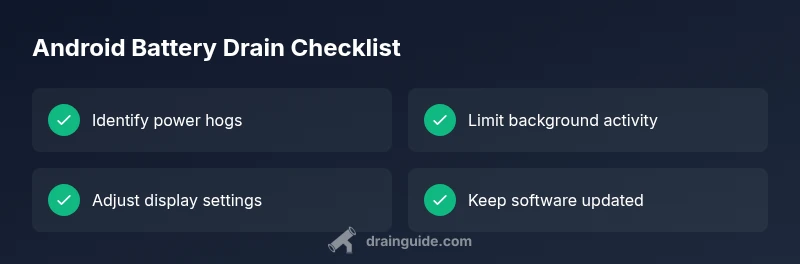
- Identify the top power hogs first
- Use built-in tools to diagnose drains
- Tighten display and background activity settings
- Keep OS and apps updated for efficiency
- Consider hardware health if drain remains after software fixes